Totally dead (no lights, fans nor beeps)
It is a hardware thing.
If PC isn’t turning on or off from button, the button can be stuck/broken or it doesn’t have a good contact to mother board (or cabling needs checking if you have installed new components). And power supply usually has it’s own on/off switch so check that it is in a correct position.
Check if the power supply has it’s own BIST to ensure if your power supply is working correctly. If power supply has a separate power chord try with different cord if possible.
CMOS/battery -reset
When PC/laptop has a separate CMOS battery
Unplug power cord and remove coin cell and other batteries (if laptop in question) from motherboard sockets. Hold the power button of the pc/laptop for about 15 seconds. Then re-attach cell coin battery and power source/batteries back to the motherboard. Try bootin’ again.
If power supply and the power button on the case should be working, you did the reset and still nothing happens when you attempt booting – the motherboard is propably broken.
Other power resets for laptops
If your laptop has outer and easily removable battery remove it, push power button for 30 seconds, put the battery back in and try booting. If there is a tiny hole on the back of your laptop it’s usually for pushing CMOS reset button which is soldered directly to system board. Push the button with a paper clip about 15 seconds and release.
No image
Can you try workstation with a different screen to determine if the screen itself is broken? Or use different cable if you’re having problem on desktop?
If you have tried testing with different screen and cable while still not getting image and PC seems to have booted otherwise try seeing if there is another image ports on you motherboard. Try if you can get an image through some another port. In case another port works, the motherboard is faulty.
If laptop has no image does the position of the lid affect to the situation?
If the image flickers the screen cable is propably the fault. It usually goes throught the hinges.
Built-in display test for Dell laptops
If you have a Dell laptop press Power button + “D”-letter at the same time. If you can see colors on your screen you should be able to get to diagnostics after display test. If machine seems to be booting but there is no image your screen panel is propably broken.
Other possible causes
Also, if you power supply has BIST, try also that to outrule to possibility of you power supply being broken – too little power to the processor might also cause PC not to be able to POST.
The processor is usually less likely to break than power supply or motherboard but not impossible. One processor symptom – for example – is that PC powers off shortly and randomly after boot attempts.
Fan error on black screen
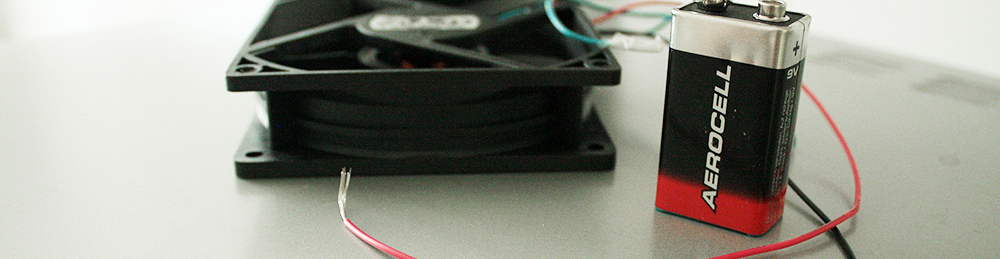
Propably fan broken, fan contact to motherboard loose/broken. If problem still persists after replacing the fan it’s possible that fan circuit on the motherboard is broken. But poor fan connection and broken fan is more often the cause – most motherboards prevent boot with non-functional fan to reduce the risk of overheating.
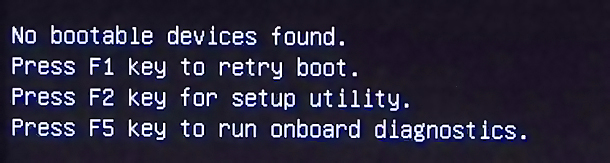
No Boot Device Found
What to do? Update Bios!!
Trigger keys for entering Bios vary within manufacturers. Some of the most common keys to enter the Bios are F1, F2, F10, Delete, Esc and Del.
Press the key when motherboard manufacturer logo displays on your screen.
If you’re not able to boot to your OS, check if the hard disk is detected in Bios
If hard disk is not detected in Bios even after the update try the CMOS -reset.
If BIOS-update and CMOS-reset won’t help and drive is still not visible in BIOS it’s propably broken. I hope it’s still under warranty. If drive is visible in BIOS now but you still have “No bootable devices found” the Windows might be corrupt. So it’s time for re-installing your Windows.
USB Tool creation for Windows install:
https://support.microsoft.com/en-us/windows/create-installation-media-for-windows-99a58364-8c02-206f-aa6f-40c3b507420d
Note: Sometimes Dell built-in diagnostics give this error when RAID/AHCI setting has been switched to another position than it was on when Windows image was installed. So if you are working with Dell check the SATA settings to be sure.
Leave a Reply